Net Speed Monitor 64-bit vs 32-bit: choosing and checking the right installer
NetSpeedMonitor 2.5.4.0 comes as two Windows Installer packages. Picking the wrong one is the quietest way to end up with a toolbar that never appears.
Two packages, one version
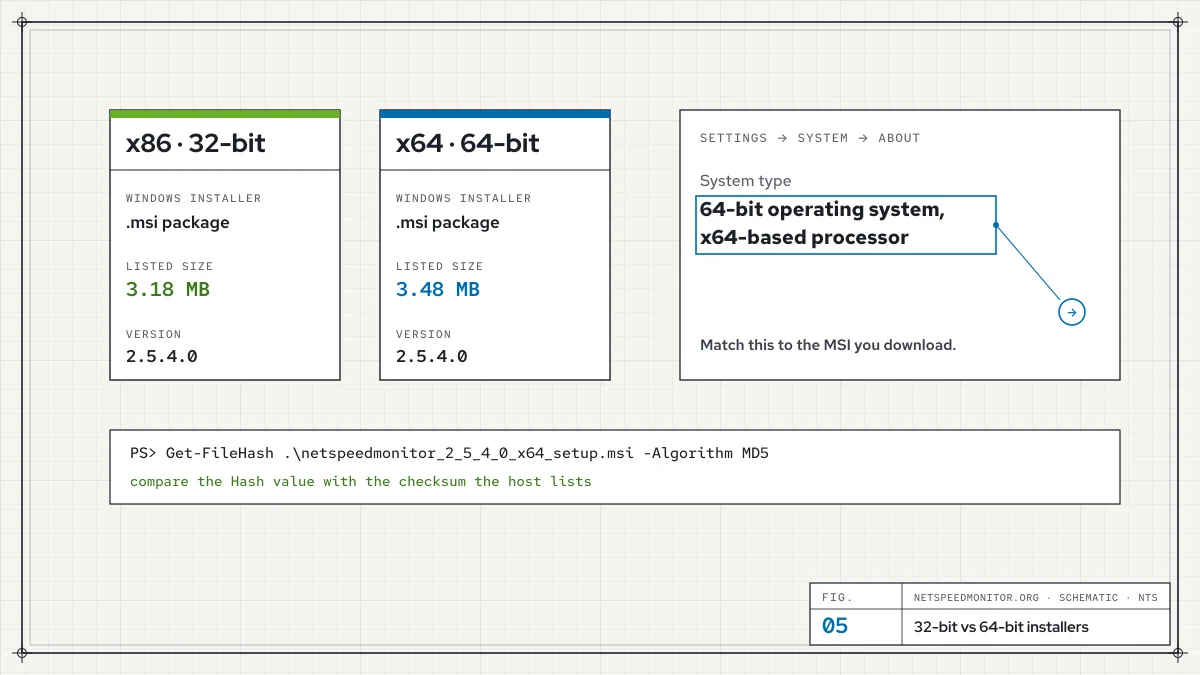
Download sites list two installers for the final release, both version 2.5.4.0:
| Edition | Filename | Listed size | For |
|---|---|---|---|
| 32-bit (x86) | netspeedmonitor_2_5_4_0_x86_setup.msi | 3.18 MB | 32-bit Windows |
| 64-bit (x64) | netspeedmonitor_2_5_4_0_x64_setup.msi | 3.48 MB | 64-bit Windows |
They offer the same features. The difference is technical but important: a taskbar toolbar is loaded inside Windows Explorer, and a 64-bit Explorer can only load a 64-bit toolbar. That is why the edition has to match Windows itself.
Check your Windows edition
- Windows 10 and 11: Settings → System → About → System type.
- Windows 7: Control Panel → System → System type.
- Any version, from PowerShell:
[Environment]::Is64BitOperatingSystemTrue means 64-bit Windows: use x64. A 64-bit processor running a 32-bit Windows still needs the x86 package, because what counts is the operating system, not the chip. Windows 11 is always 64-bit, although the toolbar has other problems there.
What happens if you pick the wrong one
The x64 package will not install on 32-bit Windows; the installer stops. The more confusing case is the reverse. The x86 package can install on 64-bit Windows, but the 64-bit Explorer cannot load a 32-bit toolbar, so NetSpeedMonitor never shows up under Toolbars. If you are in that situation, uninstall it and install the x64 package instead.
Verify the file before you run it
A checksum confirms that the file you have is byte-for-byte the one a host has listed. FileHorse publishes these MD5 values:
| Edition | MD5 as listed by FileHorse |
|---|---|
| x64 | f45b71e42ff0d06807a9bff863aa97c4 |
| x86 | 2d77dcae13646857e86912410afc867b |
In PowerShell, from the folder that holds the file:
Get-FileHash .\netspeedmonitor_2_5_4_0_x64_setup.msi -Algorithm MD5On older systems the built-in certutil does the same job:
certutil -hashfile netspeedmonitor_2_5_4_0_x64_setup.msi MD5A match shows the download is complete and unchanged from that listing. It does not prove anything about the software itself, so scan the file as well. If the hash differs, delete the file and download it again.
Downloading through this site
The button in our download section opens FileHorse, a third-party host. We do not host the installer and we are not the developer. Look at the filename on the host's page before you save it: x64 for 64-bit Windows, x86 for 32-bit. After that, follow the Windows 10 steps or the Windows 7 steps.
Ready to install NetSpeedMonitor 2.5.4.0? The download section explains which file to pick.
Download Now