Is NetSpeedMonitor on GitHub? Source code status and open-source alternatives
There is no official NetSpeedMonitor repository, and there never was. What you find on GitHub instead falls into three groups, and only one of them is useful.
NetSpeedMonitor's source code
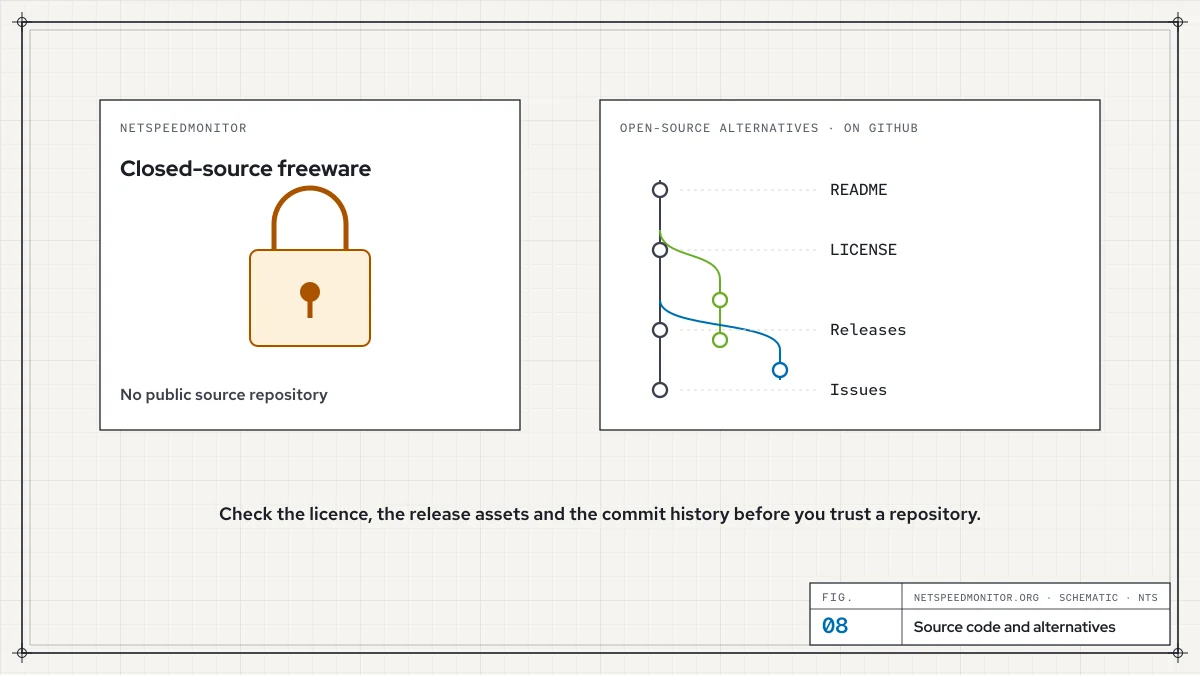
NetSpeedMonitor was distributed as free, closed-source software by its developer, Florian Gilles. The source code was never published, there is no licence that would allow others to modify it, and the developer's own site no longer offers the program. So any search for "NetSpeedMonitor GitHub" cannot lead to the original project.
What a GitHub search turns up
- Unrelated projects with a similar name. "Net speed monitor" is a generic phrase, so scripts and small apps in Python, C# and other languages use it. Some are perfectly fine; none is NetSpeedMonitor.
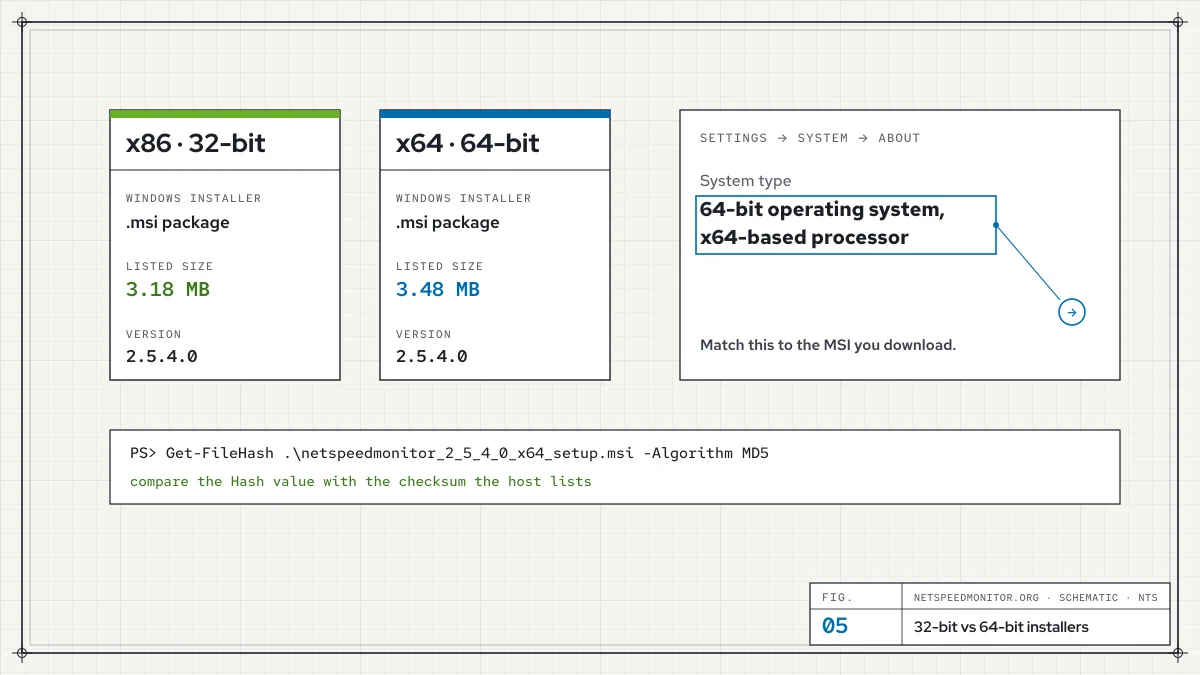
- Re-uploads of the old installer. Occasionally someone commits the 2010 MSI to a repository. You cannot tell where such a copy came from, and redistributing it is not the uploader's call. If you want the original, compare its checksum with a known listing; our editions guide has the values.
- Open-source alternatives. Separate programs that do the same job and publish their code. These are the useful results.
Open-source alternatives worth knowing
Two projects come up again and again when people look for a NetSpeedMonitor replacement:
- TrafficMonitor shows upload and download speed in a small floating window or in a taskbar window, and it can also display CPU and memory use. It is widely used as a NetSpeedMonitor substitute on Windows 10 and 11.
- NetSpeedTray is a smaller, single-purpose tool that puts a live speed readout on the taskbar.
Both are independent projects with their own maintainers and release schedules. Features and Windows 11 support change between releases, so read each project's README for the current state rather than relying on a list like this one.
How to vet a repository before you install
- Look for a licence file. No licence means you have no clear right to use or change the code.
- Download from the Releases page, not from a random file committed to the code tree.
- Check that it is alive. Recent commits, answered issues and more than one release are good signs.
- Read the open issues for your Windows version; problems with Windows 11 updates usually surface there first.
- Scan what you download and be suspicious of installers that ask for more than a taskbar meter needs.
Stars and forks measure popularity, not safety. A small project with clear releases can be a better choice than a famous one with a stale build.
When the original is still the right choice
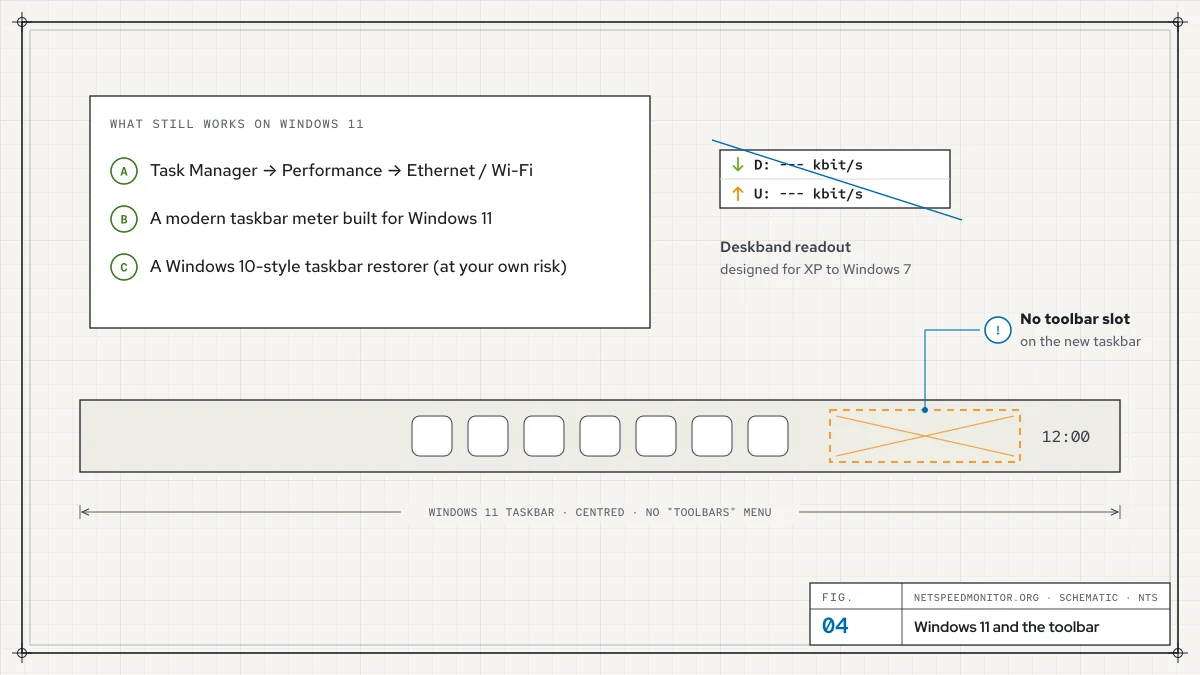
On Windows 7, and on Windows 10 with the compatibility-mode install, NetSpeedMonitor itself remains a reasonable pick: it is small, it needs no drivers and it does what it says. Alternatives make most sense on Windows 11, where the original toolbar cannot appear.
Ready to install NetSpeedMonitor 2.5.4.0? The download section explains which file to pick.
Download Now