NetSpeedMonitor and Windows 11: why the toolbar disappears and what to use instead
The most common NetSpeedMonitor question today is why it will not show up on Windows 11. The short answer is that Windows 11 no longer has the part of the taskbar it plugs into.
What changed in the Windows 11 taskbar
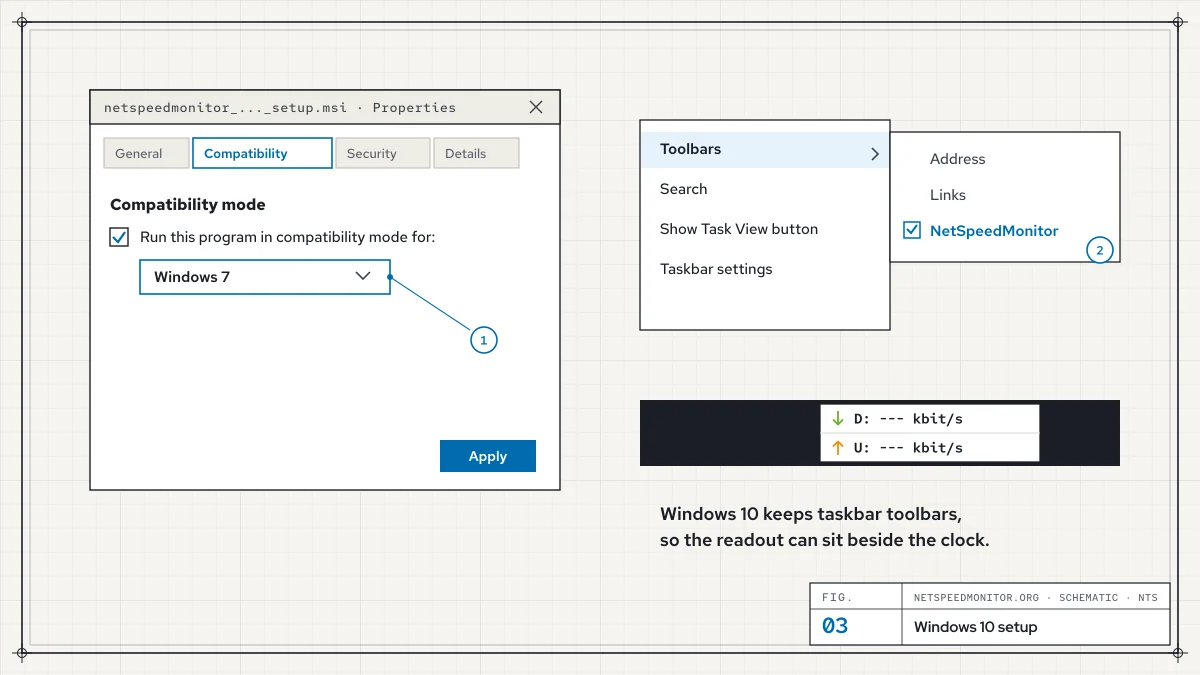
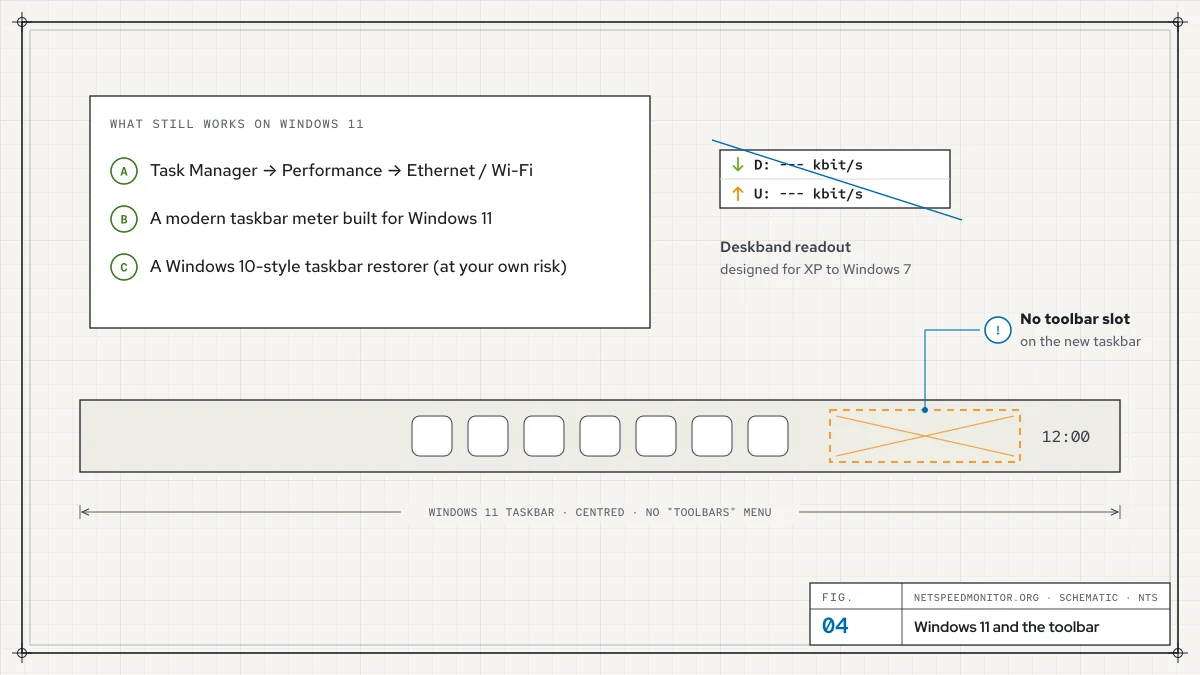
NetSpeedMonitor is a deskband: a small add-in that Windows Explorer loads into the taskbar and that you switch on from the taskbar's Toolbars submenu. Windows 7, 8 and 10 all kept that mechanism.
Windows 11 shipped with a rebuilt taskbar that dropped the Toolbars submenu and the deskband slot with it. With compatibility mode the installer may still finish, but there is no place for the readout to appear and no menu to turn it on. That is not something a setting or a reinstall can fix.
Searches for "NetSpeedMonitor Windows 11 64-bit" run into the same wall. Windows 11 only exists as a 64-bit system, so the x64 package is the matching one, but it hits the same missing slot.
Option A: Task Manager and Resource Monitor
Windows 11 already measures what NetSpeedMonitor showed; it just does not pin it to the taskbar.
- Task Manager (Ctrl+Shift+Esc) → Performance → Ethernet or Wi-Fi shows live send and receive rates with a graph. Task Manager's settings include Always on top if you want to keep it visible.
- Resource Monitor (type
resmonin Start) → Network lists sent and received bytes per process, which covers what NetSpeedMonitor's Connections table was used for.
Neither takes up taskbar space, and neither needs anything installed.
Option B: a meter built for the Windows 11 taskbar
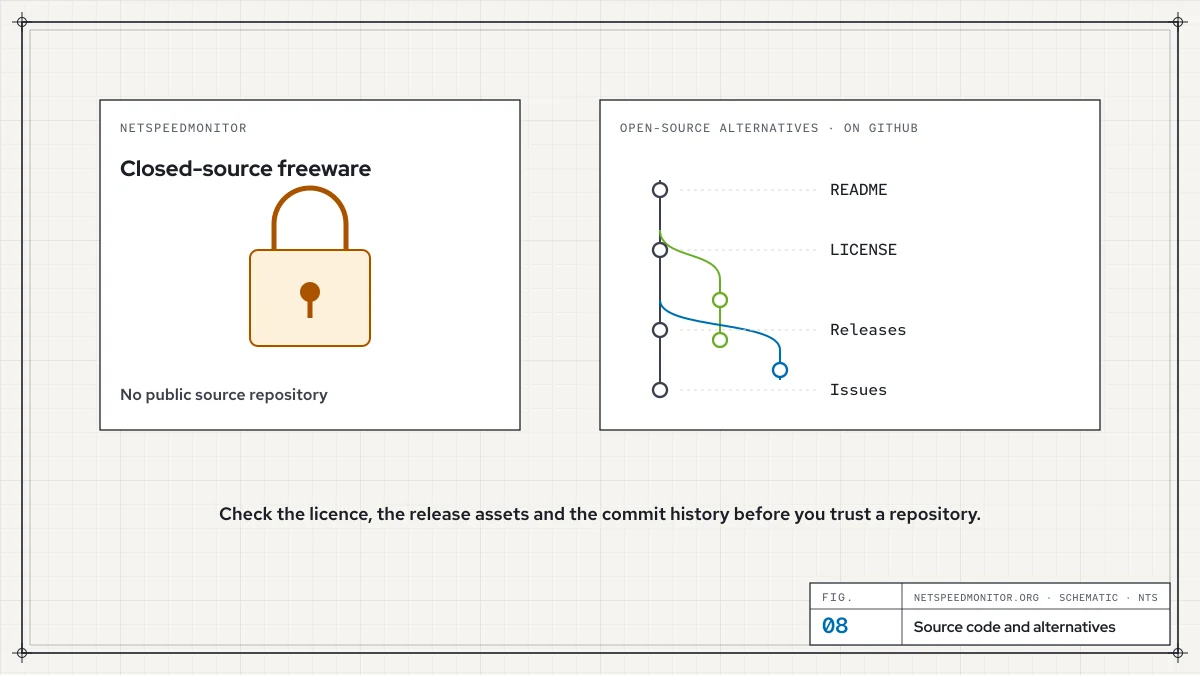
Several newer tools draw an upload and download readout on or above the Windows 11 taskbar. Two open-source examples that are often recommended are TrafficMonitor, which offers a floating window and a taskbar window, and NetSpeedTray, a small taskbar speed display. Both are separate projects with no connection to NetSpeedMonitor.
Before installing any of them, check the project's own page for current Windows 11 support, a licence and recent releases. Our GitHub guide has a short checklist for vetting a repository.
Option C: bring back a Windows 10-style taskbar
Some utilities, such as ExplorerPatcher and StartAllBack, replace the Windows 11 taskbar with one modelled on Windows 10. Users report that NetSpeedMonitor's toolbar can work again under such a taskbar, because the toolbar slot returns with it.
These tools change how Explorer works and can break, or be broken by, Windows updates. We have not tested every combination, and neither tool is ours. Use this route only if you want the older taskbar anyway, and keep a restore point.
Which option to choose
| If you want… | Choose | Why |
|---|---|---|
| Occasional checks, nothing installed | Task Manager | Built in and accurate; one shortcut away. |
| Per-program traffic | Resource Monitor | Shows sent and received bytes for each process. |
| An always-visible readout | A Windows 11 taskbar meter | Designed for the current taskbar. |
| NetSpeedMonitor exactly as before | A taskbar restorer | Works for some users; adds risk with each update. |
What not to download
There is no official NetSpeedMonitor for Windows 11. Files labelled "NetSpeedMonitor 3.0", "Windows 11 edition" or "fixed for 11" did not come from the developer, and some download sites bundle extra software with them. If you see one, treat it as an unknown program. The genuine final package is 2.5.4.0 as an MSI; the safety notice on our homepage lists its checksums.
Ready to install NetSpeedMonitor 2.5.4.0? The download section explains which file to pick.
Download Now