Is there a NetSpeedMonitor for Mac? What macOS offers instead
There is no Mac version of NetSpeedMonitor. macOS does, however, have the measurements built in, and a menu bar meter can give you the same always-visible readout.
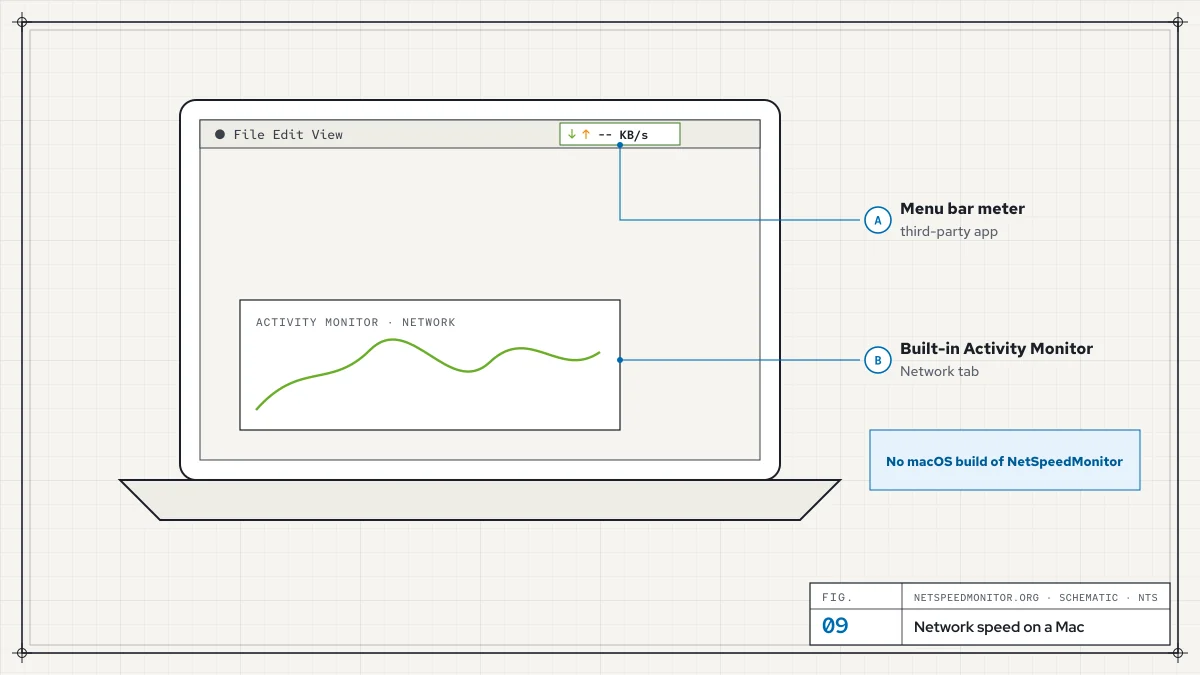
No macOS version exists
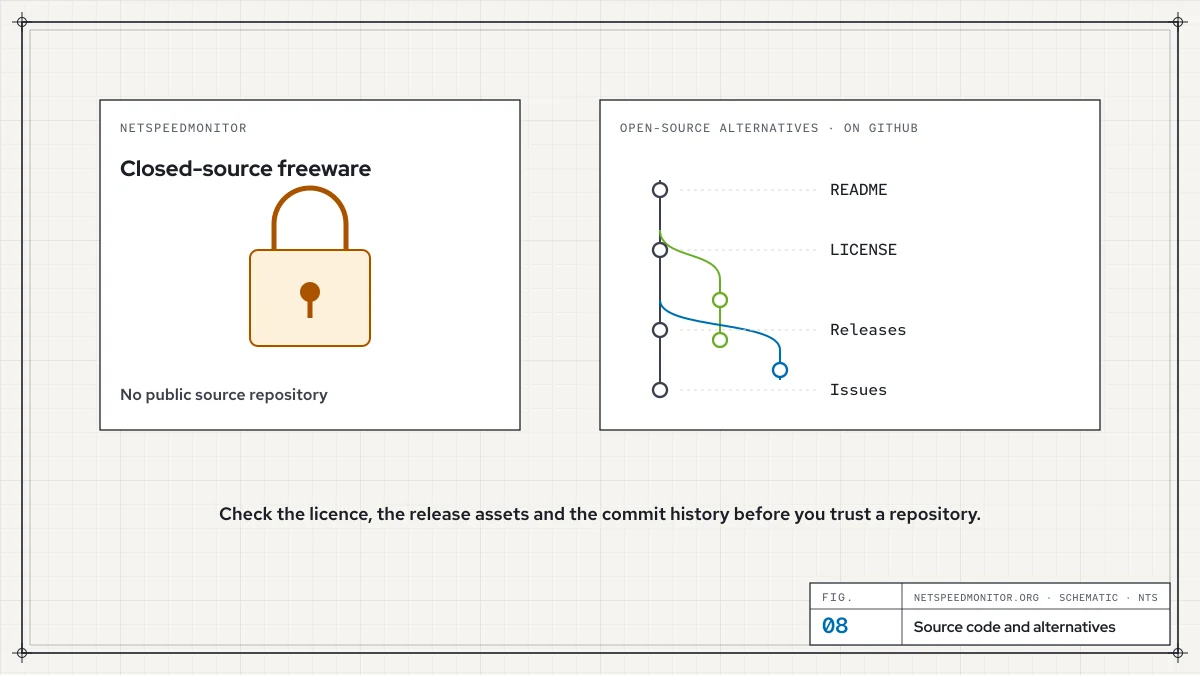
NetSpeedMonitor is a Windows taskbar toolbar, a kind of add-in that only Windows Explorer can load. It was never ported to macOS, and its development stopped in 2010. A download offered as "NetSpeedMonitor for Mac" is therefore a different program using the name, so judge it as an unknown app.
Activity Monitor: the built-in option
Open Applications → Utilities → Activity Monitor and choose the Network tab.
- The process list shows bytes sent and received by each app, so you can see what is using the connection.
- The panel at the bottom graphs network activity and shows totals and current rates for data received and sent.
- For an always-visible indicator without extra software, choose View → Dock Icon → Show Network Usage. The Activity Monitor icon in the Dock becomes a small live graph while the app is open.
Menu bar meters
The closest match to NetSpeedMonitor's look is a menu bar meter that shows upload and download rates next to the clock. Popular examples include iStat Menus, a paid system monitor, and Stats, a free open-source one. Both cover far more than network speed, so you can switch off the parts you do not need.
Install these from the developer's own site or the Mac App Store, and check that the version supports your macOS release and Apple silicon if your Mac has it.
From the Terminal
Two built-in commands give a quick live view without installing anything:
nettoplists network activity per process and updates continuously. Press q to quit.
netstat -I en0 -w 1prints the packets and bytes moved through one interface every second. en0 is usually Wi-Fi on laptops; run networksetup -listallhardwareports to see which device name belongs to which port.
Matching NetSpeedMonitor's features on a Mac
| NetSpeedMonitor feature | Closest Mac equivalent |
|---|---|
| Taskbar readout (D: / U:) | A menu bar meter, or Activity Monitor's Dock icon |
| Session, daily and monthly totals | Menu bar apps with history; Activity Monitor shows totals since startup |
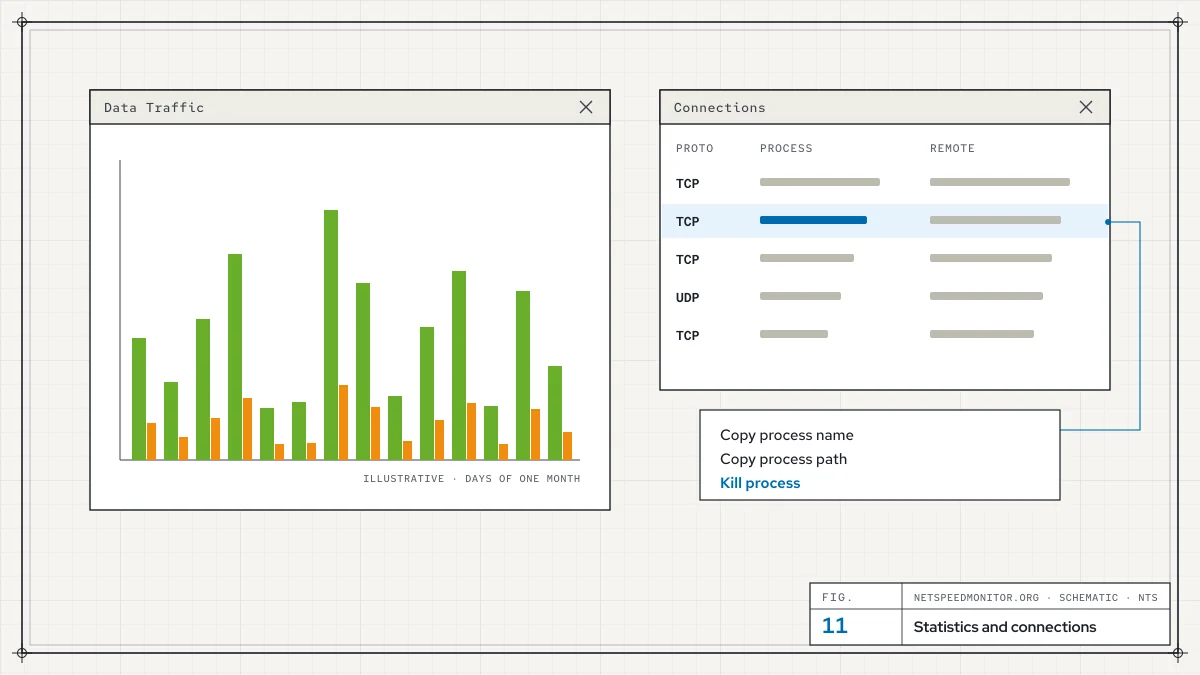
| Connections table | Activity Monitor's Network tab, or nettop |
| Choosing the adapter | Interface choice in the meter's settings; netstat -I in Terminal |
If you also use Windows, our Windows 10 guide covers NetSpeedMonitor there.
Ready to install NetSpeedMonitor 2.5.4.0? The download section explains which file to pick.
Download Now